Table of Contents Create and activate the Python environment Install Python modules Install MS SQL Start coding & Run Prerequisites For this project, we used MS SQL, so the operating system is Windows Server 2012. I installed MS SQL Server 2012 Advanced. If your system is Windows 10 or Windows 11, please install the latest version of MS SQL Express instead Python 3.12 Windows OS MS SQL Express Internet Get start Create and activate the Python environment ## create venv and activate it python -m venv c:\project\event \# <path/to/new/virtual/environment> cd c:\project\event\Scripts .\activate evnt ## if u want to deactivate deactivate Install Python modules U can install thoese module step by step , or u can use pip install -r requirement.txt Python modules install step by step ## install requirement / pip uninstall - uninstall module pip install numpy #if not work try pip install "numpy<2.0.0" pip install pymssql pip install pandas pip install python-dotenv pip install streamlit \##display this env python modules pip list Python modules install via requirement.txt numpy pymssql pandas python-dotenv streamlit Install MS SQL MS SQL Download site Microsoft® SQL Server® 2022 Express https://www.microsoft.com/en-us/download/details.aspx?id=104781 SQL Server installation guide https://learn.microsoft.com/en-us/sql/database-engine/install-windows/install-sql-server?view=sql-server-ver16&culture=en-us&country=us MS SQL Remote https://www.itiohub.com/log/437.html Starting coding First streamlit app Example: import streamlit as st st.title("Hello, there!") st.write("Welcome to my website") Save it, then go back to PowerShell or run it in your VS Code. streamlit run app.py The default port is 8501, but you can change the port if you want. streamlit run app.py --server.port 80 More example and more tuorials https://docs.streamlit.io/develop/tutorials Connect to the SQL Exmaple: import…

November 22, 2025 0comments 193hotness 2likes Read all

References: Vultr How to Install Jupyter Notebook on Ubuntu 24.04 https://docs.vultr.com/how-to-install-jupyter-notebook-on-ubuntu-24-04 Prerequisites Ubuntu 24.04 Internet Using pip Install Jupyter Notebook on Ubuntu 24.04 Update APT package index.. sudo apt update Install the virtualenv package: sudo apt install python3-virtualenv -y Create a new virtual environment named jupyter_env. virtualenv jupyter_env Activate the virtual environment. source jupyter_env/bin/activate Install Jupyter Notebook using pip. pip install jupyter 6.Verify the installed Jupyter Notebook version. jupyter-notebook --version You can deactivate the virtual environment anytime by running deactivate If u need more gudelines please visit Vultr Config file modify 1. Basically modify vim ~/.jupyter_notebook_config.py c.ServerApp.open_browser = False \# Prevent it from opening a browser on the server c.ServerApp.allow_remote_access = True \# Allow external access 2. Set password jupyter notebook password #reminder u enter the password cat ~/.jupyter_server_config.json \# copy the password hash vim ~/.jupyter_notebook_config.py \#modify option c.ServerApp.password = '___your password hash___' 3. Write a shell script to allow remote access. \#!/bin/bash source __yourenvname__/bin/activate CURRENT_IP=$(hostname -I | awk '{print $1}') echo "IP Address: $CURRENT_IP" jupyter notebook --no-browser --port 8888 --ip="CURRENT_IP"

August 12, 2025 0comments 640hotness 0likes Read all

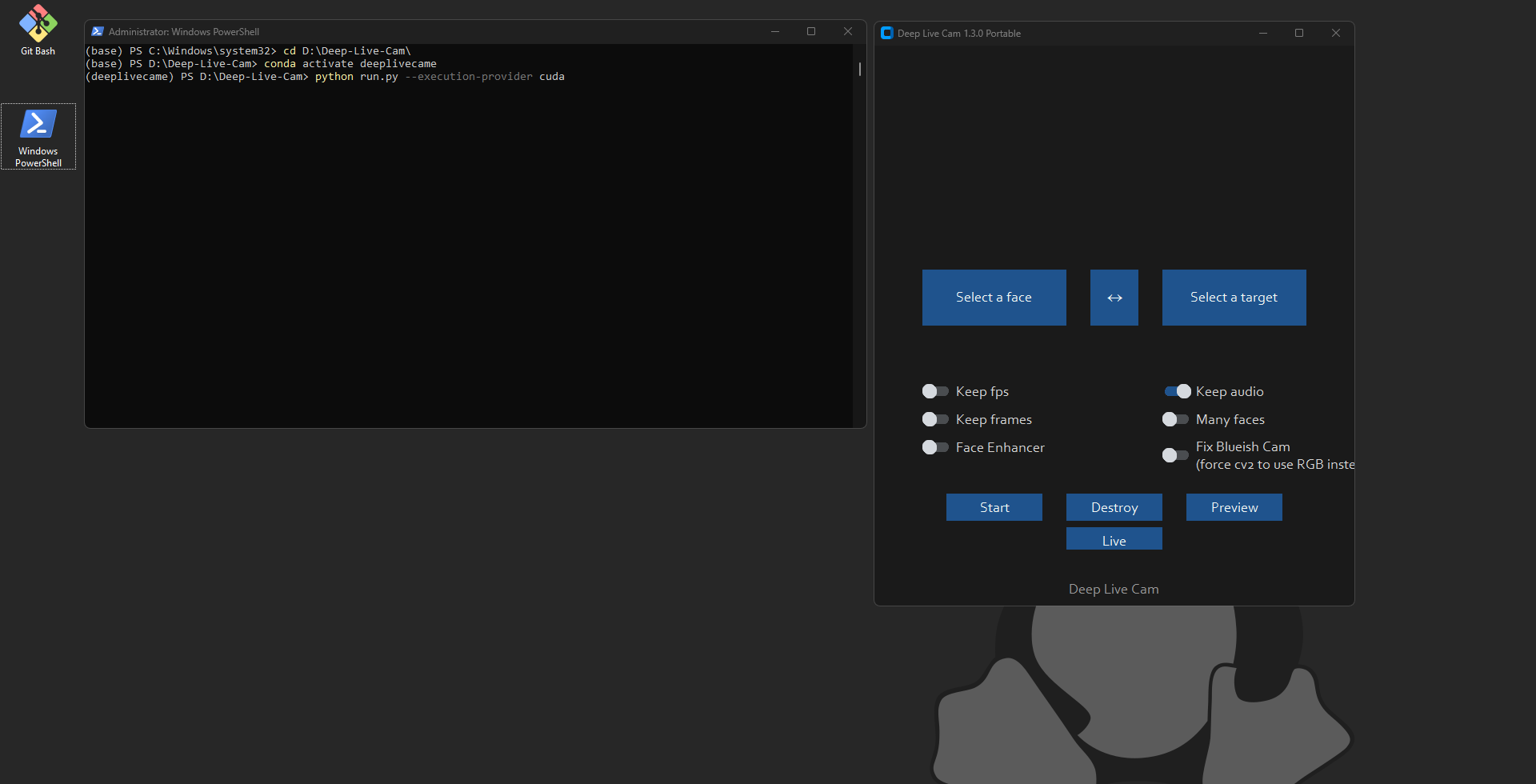
Deep Live cam 笔记 项目地址: https://github.com/hacksider/Deep-Live-Cam 在本篇笔记中不会涉及cuda,Python,Conda,Git,等相关的计算机知识。只有步骤记录和在使用部署时遇到的问题记录。 以下操作都是在Windows操作系统下进行的,我的系统版本号为: Microsoft Windows 11 Pro10.0.22631 Build 22631 先决条件 带有Nvidia 显卡的桌面电脑或者笔记本电脑 稳定的网络环境 DeepLiveCam所需的软件或编译工具 Python 3.10.0 CUDA cuDNN Git ffmpeg Conda-Py 3.10 Microsoft C++ Build Tools DeepLiveCam项目本体 模型下载 GFPGANv1.4 inswapper_128_fp16.onnx 环境安装 Python 3.10.0 下载地址: https://www.python.org/ftp/python/3.10.0/python-3.10.0-amd64.exe 像正常安装应用软件那样安装即可,记得勾选添加到系统变量 CUDA 下载地址: https://developer.nvidia.com/cuda-toolkit-archive 安装完成之后在命令行运行 nvidia-smi 检查显卡支持的最大CUDA 版本 nvidia-smi cuDNN 需要下载CUDA支持的版本 下载地址: http://developer.nvidia.com/rdp/cudnn-archive 安装完成之后在命令行运行 nvcc -V cuDNN的版本号 如果提示命令不存在,请检查系统的环境变量和用户变量 nvcc -V Git 下载地址: https://git-scm.com/downloads 安装完成之后在命令行运行 git --version 检查Git的版本号 git --version 如果提示命令不存在,请检查系统的环境变量和用户变量 Conda 下载地址: https://docs.anaconda.com/miniconda/ 选择Miniconda3-py310_24.7.1-0-Windows-x86_64.exe 安装完成之后在命令行运行 conda --version 检查conda的版本号 conda --version 注意: 若提示命令不存在,请检查环境变量和用户变量 路径如下: C:\ProgramData\miniconda3\Scripts ffmpeg 下载地址: https://www.ffmpeg.org/download.html 安装完成之后在命令行运行 ffmpeg --version 检查conda的版本号 ffmpeg -version 注意: 若提示命令不存在,请检查环境变量和用户变量 路径为:yourpath\ffmpeg-6.1.1-essentials_build\bin Microsoft C++ Build Tools 下载地址: https://visualstudio.microsoft.com/visual-cpp-build-tools/ 在安裝過程中,確保選擇了 "C++ build tools" 和 "Windows 10 SDK"(或相應的版本) 修改Windows PowerShell 的执行策略 查看当前执行策略 Get-ExecutionPolicy -List 设置执行策略:可以将执行策略设置为 Unrestricted 或 RemoteSigned。Unrestricted 允许所有脚本运行,而 RemoteSigned 仅要求从互联网下载的脚本必须经过签名。 设置为 Unrestricted: Set-ExecutionPolicy Unrestricted -Scope LocalMachine 或者设置为 RemoteSigned: Set-ExecutionPolicy RemoteSigned -Scope LocalMachine 确认更改:在提示时输入 Y 确认更改。 验证执行策略:再次运行以下命令以确认执行策略已更改: Get-ExecutionPolicy -List 项目部署 管理员运行PowerShell 在命令行你想要指定的位置创建一个英文目录 cd到你创建的目录下进行项目克隆 注意: 整个环境都不应该有中文目录或名称 克隆项目 git clone https://github.com/hacksider/Deep-Live-Cam.git CD 到 项目目录 cd /yourpath/Deep-Live-Cam 使用conda创建名为DeepLiveCam的 env #初始化conda 环境 conda init #创建DeepLiveCam的 env conda create -n deeplivecam python=3.10.0 #查看env 列表 conda env list #根据提示按Y #等待创建完成之后激活env conda activate deeplivecam #激活之后,命令行前会显示(deeplivecam) 安装DeepLiveCam项目 的requriements.txt 确认在项目目录内 yourpath/deeplivecam 执行以下命令 #安装环境包 (需要完全稳定的互联网) pip install -r requirements.txt #等待安装完成之后 重新安装一下以下软件包 pip uninstall onnxruntime onnxruntime-gpu #指定安装onnxruntime-gpu版本 pip install onnxruntime-gpu==1.16.3 拷贝模型文件 如果以上步骤和命令都已经完成安装且没有任何报错,将之前下载好的模型文件拷贝到项目的models 目录下, 文件树如下 Directory: D:\Deep-Live-Cam\models Mode LastWriteTime Length Name ---- ------------- ------ ---- -a---- 9/2/2024 9:09 AM 348632874 GFPGANv1.4.pth -a---- 9/2/2024 10:27 PM 34 instructions.txt -a---- 9/2/2024 9:11 AM 277288649 inswapper_128_fp16.onnx 启动DeepLiveCam 项目 管理员运行Windows Power Shell 在 Windows Power Shell 中执行以下命令 #进入DeepLiveCam项目目录 cd D:\Deep-Live-Cam\ #根据自己的实际路径操作 conda activate deeplivecam # 激活deeplivecam 的env python run.py --execution-provider cuda #运行deeplivecam 项目 最终,在项目界面中选择一张照片进行Live验证…

September 6, 2024 0comments 1669hotness 0likes Read all

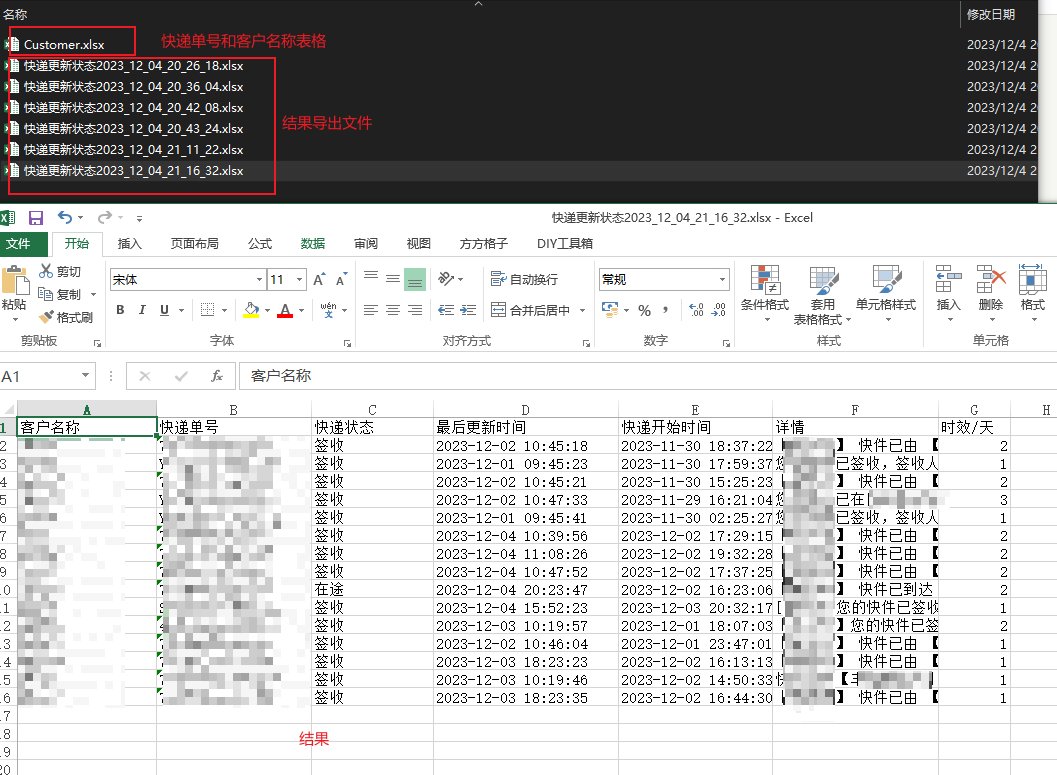
缘由 因为11月份是快递量比较大时候,会有有很多快递单需要查询快递状态;之前是因为单量少,每一个单每一个单去baidu 直接看百度查询到的结果。这两个月由于快递单特别多,于是就打算用Python 结合快递100的API 来查询快递状态 代码 快递100 API 实时查询状态 # coding = utf-8 import hashlib import json import requests class KuaiDi100: def __init__(self): self.key = '' # TODO 客户授权key self.customer = '' # TODO 查询公司编号 self.url = 'https://poll.kuaidi100.com/poll/query.do' # 请求地址 def track(self, com, num, phone, ship_from, ship_to): """ 物流轨迹实时查询 :param com: 查询的快递公司的编码,一律用小写字母 :param num: 查询的快递单号,单号的最大长度是32个字符 :param phone: 收件人或寄件人的手机号或固话(也可以填写后四位,如果是固话,请不要上传分机号) :param ship_from: 出发地城市,省-市-区,非必填,填了有助于提升签收状态的判断的准确率,请尽量提供 :param ship_to: 目的地城市,省-市-区,非必填,填了有助于提升签收状态的判断的准确率,且到达目的地后会加大监控频率,请尽量提供 :return: requests.Response.text """ param = { 'com': com, 'num': num, 'phone': phone, 'from': ship_from, 'to': ship_to, 'resultv2': '1', # 添加此字段表示开通行政区域解析功能。0:关闭(默认),1:开通行政区域解析功能,2:开通行政解析功能并且返回出发、目的及当前城市信息 'show': '0', # 返回数据格式。0:json(默认),1:xml,2:html,3:text 'order': 'desc' # 返回结果排序方式。desc:降序(默认),asc:升序 } param_str = json.dumps(param) # 转json字符串 1. 签名加密, 用于验证身份, 按param + key + customer 的顺序进行MD5加密(注意加密后字符串要转大写), 不需要“+”号 temp_sign = param_str + self.key + self.customer md = hashlib.md5() md.update(temp_sign.encode()) sign = md.hexdigest().upper() request_data = {'customer': self.customer, 'param': param_str, 'sign': sign} return requests.post(self.url, request_data).text # 发送请求 result = KuaiDi100().track('yuantong', 'YT9693083639795', '', '广东省江门市', '广东省深圳市') print(result) 接口文档 https://api.kuaidi100.com/document/5f0ffb5ebc8da837cbd8aefc 导入快递单和填写结果 # coding = utf-8 import openpyxl from openpyxl import Workbook from kuaidi1000_function import KuaiDi100 import json import time wb = Workbook() ws = wb.active 1. 定义表头 title = ['客户名称','快递单号','快递状态','最后更新时间','快递开始时间','详情','时效/天'] ws.append(title) start_time = time.time() #读取excel表格 customer_file_path = 'F:/EXCEL/info/Customer.xlsx' customer_workbook = openpyxl.load_workbook(customer_file_path) 1. 获取工作表的Sheet customer_sheet = customer_workbook['海运SEA'] sheet = customer_sheet.title #顺丰快递需要手机号验证 air = 2699 sea = 8166 phone = '' #判断当前表格是否海运还是空运并赋值给phone if sheet == '海运SEA': phone = sea else: phone = air 1. 获取Customer.xlsx中A2:A100列的所有客户名字和B2:B100列的相对应的快递单号 customer_names =[(customer_sheet.cell(row=i, column=1).value) for i in range(2,100)] express_numbers = [(customer_sheet.cell(row=i, column=2).value) for i in range(2,100)] 1. 将快递单号使用for循环查询快递状态 ,并append 到 infomation_first中 for express_number, customer_name in zip(express_numbers,customer_names): response = KuaiDi100().track('',express_number,phone,'','') #定义获取到的数据 api_data = json.loads(response) #判断数据是否存在 if 'data' in api_data and api_data['data']: last_data = api_data['data'][-1]…

December 8, 2023 0comments 3364hotness 0likes Read all

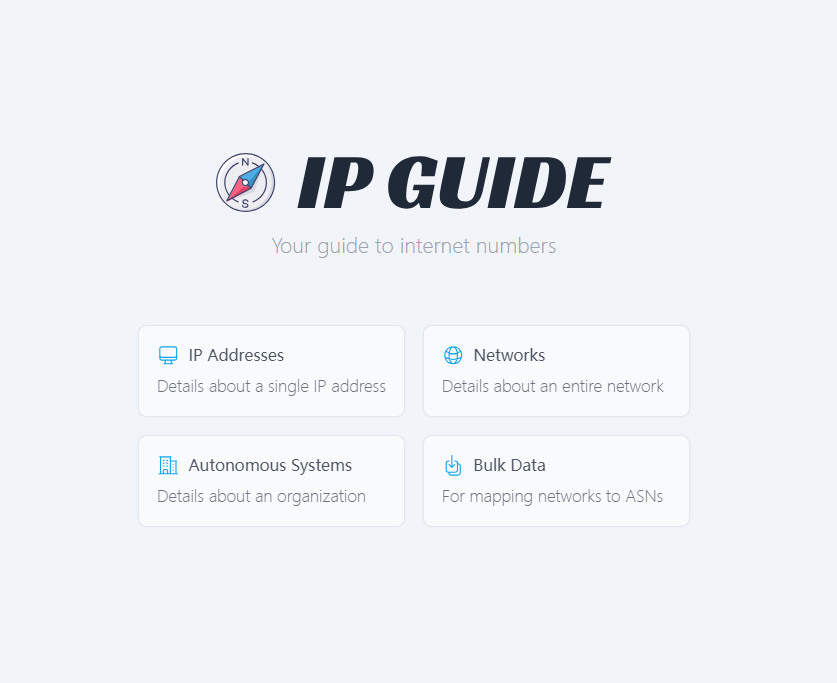
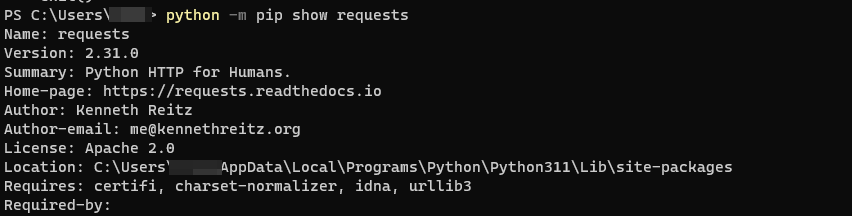
Intuduction When we need to check some IP address information , do we have to open the browser, then type the googl domain and copy-paste the IP address? In this article . I'm goinG to use python with IP GUIDE to check ipaddres information .This much better before. Let's started Install Python found what version can be match your OS , download it and installl .https://www.python.org/downloads/ Install requests library website: https://pypi.org/project/requests/ $ python -m pip install requests Code #import requests library import requests #get data from ip guide response = requests.get(f'https://ip.guide/').json() #function get_ip def get_ip(): return response["ip"] #function get_location def get_location(): location_data = { "Latitude":response["location"]["latitude"], "Longitude" : response["location"]["longitude"], "City": response["location"]["city"], "Country": response["location"]["country"] } return location_data #function get_network def get_network(): network_data = { "Cidr": response["network"]["cidr"], "Host Start" : response["network"]["hosts"]["start"], "Host end" : response["network"]["hosts"]["end"] } return network_data #dictionary variable network_data = get_network() location_data = get_location() ipaddress = get_ip() 1. output information print(f"Your internet IPaddress is :{ipaddress}\n and below is this IPaddress other informations\n") 1. for loop for key,value in network_data.items(): print(f"{key}: {value}") print(" \n") for key,value in location_data.items(): print(f"{key}: {value}") print(" \n") Refrence: https://ip.guide/ https://pypi.org/project/requests/

December 2, 2023 0comments 639hotness 0likes Read all